

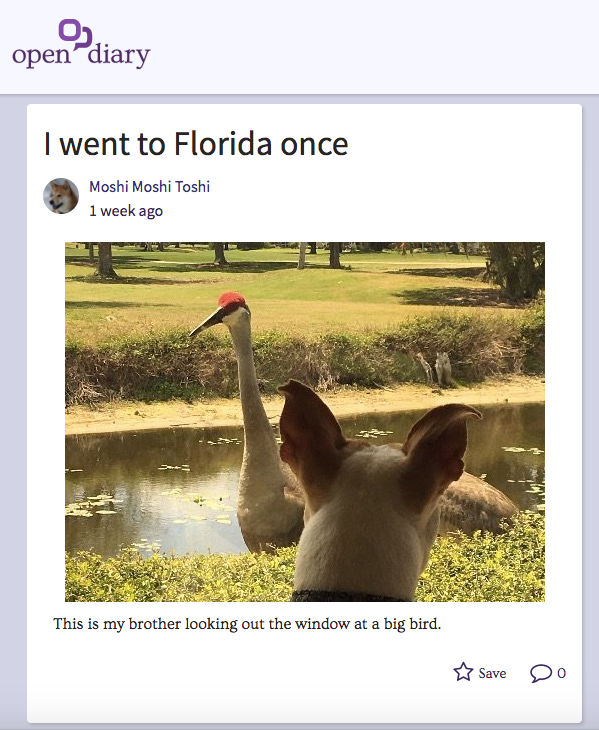
The key image for an entry is the image that appears on any card view of the entry, like on the front page of the site or on a circle page.
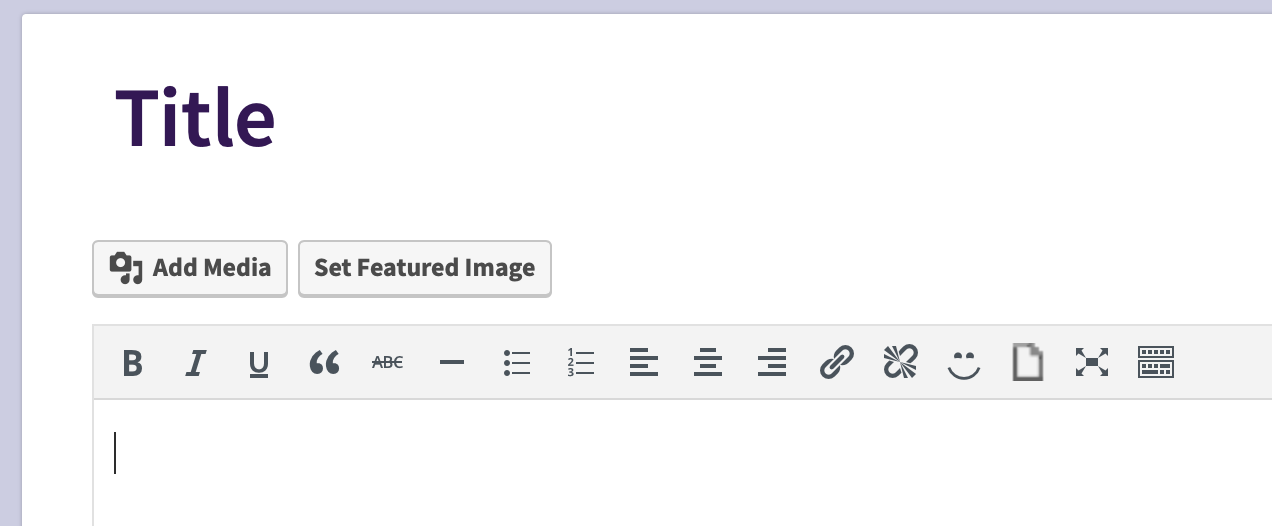
To add a key image on your entry, you must first be editing the entry.
On the Entry Edit screen just below the Title there is a button for Set Featured Image:
When you click the Set Featured Image button, you will see a screen with two tabs, Upload Files and Media Library:
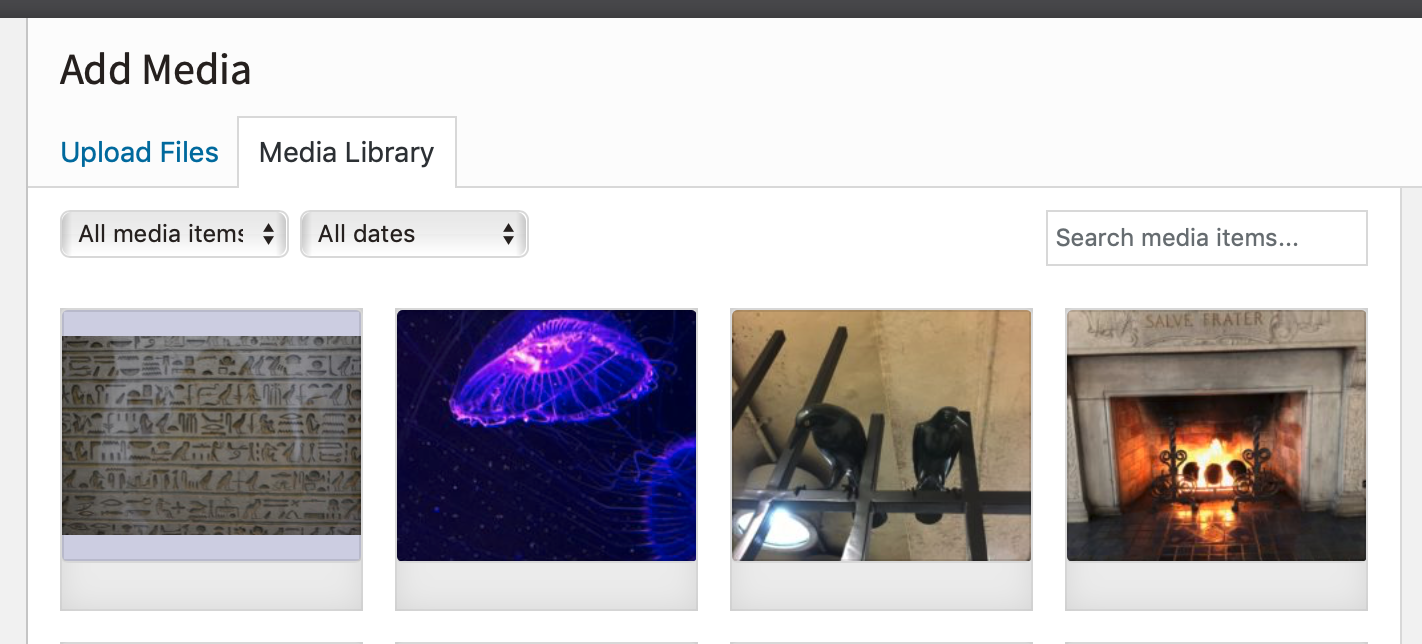
The Media Library tab shows you all of the pictures you have previously uploaded for any of your entries. If you want to re-use one of those pictures, just select the picture by clicking on it.
If you want to upload a new picture to your diary, click on the Upload Files tab. Doing this will show you a Select Files button - clicking this button will allow you to pick a file off your computer or mobile device to upload.
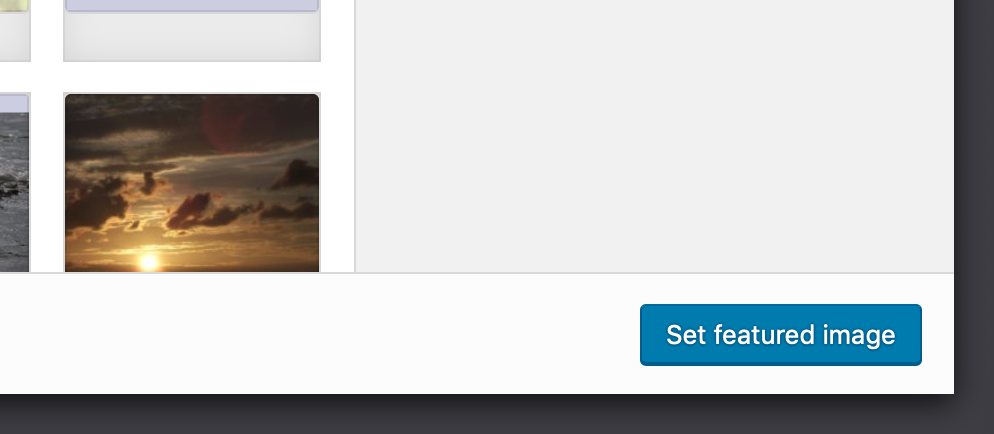
When the picture file is finished uploading, click the Set featured image button in the lower right of the screen, to make this image the featured image:
There is currently no limit on how many pictures you can upload to your diary. The upload currently supports .jpg files only.
If you wish to change the image to a different one, you can remove the key image.
Comments
0 comments
Article is closed for comments.